Stuck in a battle with your printer again? Let's be honest, mobile printing can feel like magic one minute and a total mystery the next. Here’s how to fix the most common issues.
It’s a scenario that feels all too familiar in our hyper-connected world. You have an important document—a concert ticket, a shipping label, a last-minute report—sitting right there on your phone. You hit "print," lean back, and expect to hear the familiar whir of your printer springing to life. Instead, you’re met with silence. A deafening, frustrating silence. You check the printer. It’s on. You check your phone. It says it’s sending. Yet, nothing. If you’ve ever found yourself wanting to throw both your phone and your printer out the window, you are definitely not alone.
The promise of mobile printing is one of ultimate convenience, a seamless bridge between our digital and physical worlds. But when it fails, it feels like a personal betrayal by the very technology that’s supposed to make our lives easier. I used to think it was just me, that I had some kind of anti-tech force field that only activated when I was in a hurry. The truth, however, is that the connection between a phone and a printer is a delicate dance, with plenty of opportunities for missteps.
The good news is that you don’t need to be a tech wizard to solve most of these problems. More often than not, the fix is surprisingly simple, hiding in plain sight. It’s about knowing where to look and what questions to ask. So before you give up and drive to the nearest print shop, let's walk through some of the most common mobile printing headaches and how to cure them.
The Wi-Fi Disconnect: Are You on the Same Page?
This is, without a doubt, the number one culprit. Your phone and your printer are like two people trying to have a conversation in a crowded room; if they aren't on the same frequency, they'll never hear each other. I can’t tell you how many times I’ve discovered my phone had automatically connected to my 5GHz Wi-Fi network while my older printer was stubbornly sitting on the 2.4GHz band. To them, they might as well have been in different houses.
First, do the simplest check: ensure both your smartphone and your printer are connected to the exact same Wi-Fi network. Pull down your phone’s control center and double-check the network name. Then, check your printer’s network settings, either on its little LCD screen or by printing a network configuration page. If they don’t match, you’ve found your problem. Connect one of the devices to the other’s network and try again.
If they are on the same network and still not communicating, it's time for the oldest trick in the IT handbook: restart everything. Power down your phone, your printer, and your internet router. Wait a solid minute (don't rush it!) before turning them all back on. This "digital reset" can clear up countless invisible glitches, IP address conflicts, or a backed-up print queue that’s causing the logjam. It feels almost too simple to work, but its success rate is astonishingly high.

App & Driver Drama: The Software Struggle
Let's say your Wi-Fi is perfect. The next place to look is the software that acts as the translator between your phone and printer. This is where things can get a little messy, especially in the Android world. Apple’s ecosystem is fairly straightforward with its built-in AirPrint technology. If your printer is AirPrint-compatible, it should (in theory) just work. For Android users, and even for some iOS situations, you're often dealing with manufacturer-specific apps like HP Smart, Canon PRINT, or Epson iPrint.
The problem is that these apps, along with your phone's operating system and your printer's own internal software (its firmware), are all being updated at different times. An update to your phone's OS could suddenly create a conflict with an older version of the printer app. Your first step should be to go to the App Store or Google Play Store and check for updates to your printer’s app. An out-of-date app is a common source of failure.
If that doesn't work, consider the drivers themselves. Sometimes, the default print service on your phone can get corrupted or confused. On Android, you can go into Settings > Connections > More connection settings > Printing and see which print services are active. Try turning the default one off and making sure only your printer manufacturer's service is on. If things are really stuck, don't be afraid to completely uninstall the printer from your phone and reinstall it from scratch. It gives your phone a chance to forget any bad habits and establish a fresh, clean connection.
The File Format Foul-Up
Sometimes, the issue isn't the connection or the software, but the file itself. You might be trying to print a weirdly formatted document or a super high-resolution image that is simply too much for your printer's memory to handle. The printer tries to process it, fails, and then just gives up without telling you why. This often results in a print queue that’s clogged with a failed job, preventing anything else from printing behind it.
If you suspect this is the case, try printing something incredibly simple, like a basic text note or a small, low-resolution photo. If that works, you know the problem lies with the original file. For documents, the most reliable format for printing is almost always a PDF. If you're trying to print from a proprietary app or a strange file type, try saving or exporting it as a PDF first, then print the PDF file. This standardizes the document and removes any weird formatting that might be tripping up your printer.
If you’re printing from a web page on your phone, use the "Share" or "Print" function, but look for an option to "Save as PDF" instead of selecting your printer directly. Once you have the PDF saved to your phone, open that file and print it. This extra step can solve a surprising number of formatting-related printing headaches, ensuring that what you see on your screen is exactly what comes out of the printer.
It’s a frustrating dance, for sure, but one you can learn the steps to. By methodically checking your connection, your software, and your file, you can solve the vast majority of mobile printing problems yourself. And there's a unique satisfaction in conquering a stubborn piece of technology, turning a moment of frustration into a small, quiet victory. Here’s to more successful prints and fewer silent, blinking lights.

Let AI Handle the Driving: The Smart Way to Keep Your System Updated
Tired of Emailing Docs to Yourself? Here’s How to Print From Your Phone

Related Posts
 MOBILE
The Great Console Debate: How to Choose the Right Gaming System for Your Family
Feeling stuck between a Switch, a PlayStation, and an Xbox? Let's break down which gaming console is the perfect fit for your family's game nights.
 MOBILE
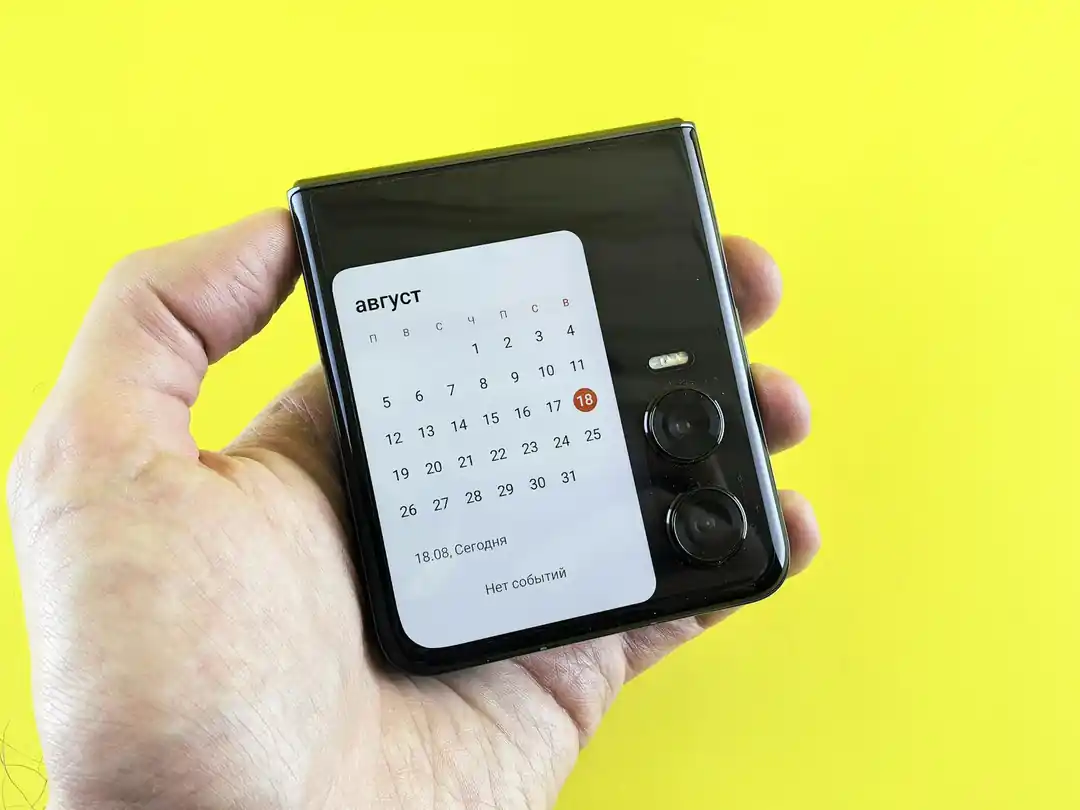
From Fragile to Formidable: The Surprising Evolution of Foldable Phone Durability
Remember when the idea of folding a smartphone screen in half felt like a disaster waiting to happen? Let's talk about how far they've come, because the story is pretty incredible.

Popular Posts

Beyond Stark White: The Best Interior Paint Colors to Light Up Your New Space

How to Actually Master a New Language on Your Own (No Magic Gene Required)

The Simple Pre-Workout Fueling Strategy That Saved My Long Runs