Waiting on a critical email that shows up hours late? You're not alone. Let's dive into why your phone is holding your messages hostage and how to get your alerts back in real-time.
There’s a unique, modern kind of anxiety that comes from discovering an important email arrived hours ago, with absolutely no notification from your phone. You might be waiting for a job offer, a confirmation for a flight, or an urgent message from a colleague, and your phone—your supposed gateway to instant communication—has been silently holding onto it. When you finally open your email app out of habit, a flood of messages rushes in, and you see the timestamps from another era (or at least, from earlier this morning). It’s frustrating, and it can make you feel completely out of sync with the world.
I used to blame my Wi-Fi, my service provider, or just bad luck. It felt like a random, unsolvable problem. After talking with friends and digging through what feels like hundreds of tech articles and forums, I realized this isn't a rare occurrence. It’s a common frustration for both Android and iPhone users alike. Our devices are packed with features designed to make our lives easier and, ironically, to save battery life, but these same features are often the culprits behind our delayed digital mail.
The good news is that you don't have to live with this notification lag. The problem is almost always fixable, and it usually doesn't require a trip to the phone repair shop. It’s about understanding the "why" behind the delay. Your phone isn't trying to sabotage you; it's just following rules that you might have unknowingly set. By taking a little tour through your settings, you can teach your phone what’s important and get those alerts back to the "instant" in instant messaging.
Why Your Phone Is Playing Hide-and-Seek with Your Emails
Before we can fix the problem, it helps to understand what’s causing it. Think of your phone as having a very strict energy budget. To make the battery last all day, it has to make decisions about which apps get to use power in the background. Unfortunately, your email app sometimes gets put on a "low priority" list, especially if you haven't opened it in a while. This is one of the biggest reasons for delayed notifications.
On Android devices, features like "Adaptive Battery" or "Battery Optimization" learn your usage patterns and restrict apps you don't use frequently. If your phone decides your email app isn't essential, it will prevent it from checking for new mail in the background to conserve power. On an iPhone, "Low Power Mode" does something similar, drastically cutting down on background activities, including fetching new emails. While great for stretching that last 10% of battery, it’s a direct cause of notification delays.
Another major factor, particularly for iPhone users, is the "Fetch New Data" setting. Some email accounts use "Push," where the server instantly sends the email to your phone. Others rely on "Fetch," where your phone has to ask the server for new mail at set intervals (like every 15 or 30 minutes). If your settings are configured to fetch manually or infrequently, you’re building in a delay from the start. Combined with "Background App Refresh" being turned off, your Mail app is essentially told not to do anything until you open it.
How to Get Your Notifications Back on Track: For Android Users
If you're on Team Android, the most likely culprit is an overzealous battery-saving feature. Your phone is trying to be helpful, but it's a little too good at its job. The first and most important step is to tell your phone that your email app is a VIP that deserves unrestricted access.
Go to Settings > Apps. Find your email app (Gmail, Outlook, etc.) and tap on it. From there, look for the Battery or Battery Usage section. You'll likely see it's set to "Optimized" or "Restricted." Change this setting to "Unrestricted." This single change is often enough to solve the problem entirely, as it gives the app permission to run in the background and check for new mail as it arrives.
While you're in the app settings, double-check that its data access isn't being limited. Still in your email app's info page, look for "Mobile data & Wi-Fi" and ensure that "Background data" and "Unrestricted data usage" are enabled. This prevents your phone from cutting off the app's internet access when it's running in the background, which is another common cause of delays. Finally, a simple restart of your phone can often clear up any temporary software glitches that might be interfering with notifications.
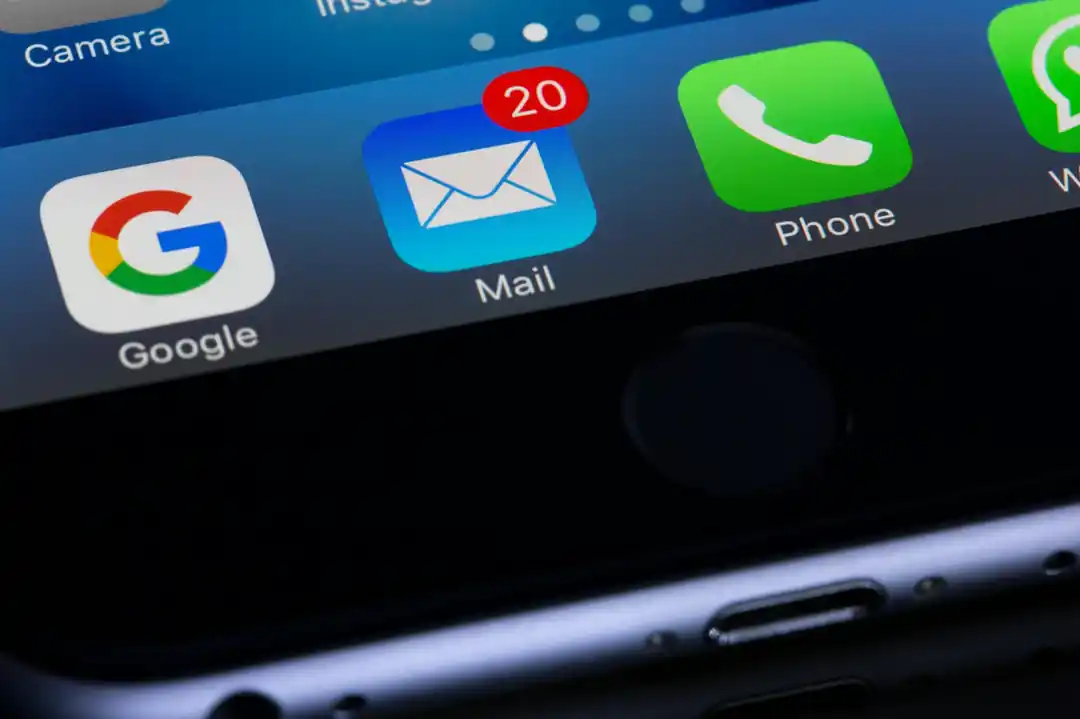
How to Get Your Notifications Back on Track: For iPhone Users
For iPhone users, the process is a little different and often revolves around how your phone fetches mail and handles background tasks. The first place to check is your Mail settings. Go to Settings > Mail > Accounts > Fetch New Data.
At the top, you'll see options for your various accounts. For accounts like iCloud and Gmail, you should see "Push" as an option—make sure it's enabled. For other accounts, you'll be relying on the "Fetch" schedule at the bottom of the screen. If it's set to "Manually," your phone will only check for new mail when you open the app. For the most timely notifications, set this to "Automatically" or, at the very least, "Every 15 Minutes." "Automatically" allows your phone to fetch in the background when connected to both power and Wi-Fi, which is the most efficient and timely option.
Next, ensure "Background App Refresh" is enabled. Go to Settings > General > Background App Refresh. Make sure the main toggle is on, and then scroll down the list to find your Mail app and confirm it's enabled there as well. Also, be mindful of "Low Power Mode" (the yellow battery icon). If it's on, your phone will automatically reduce background fetching to save power. Turning it off in Settings > Battery is often an instant fix for delayed notifications.
It’s a strange reality that we have to fine-tune these incredibly smart devices to perform their most basic functions. But taking a few minutes to navigate these settings can restore your peace of mind and ensure you're never late to an important email again. Hopefully, these tips help your digital life run a little more smoothly.
Never Lose a Number Again: The Ultimate Guide to Syncing Your Contacts
Lost in the Inbox? Why Gmail Hides Your Important Emails and How to Fix It
Related Posts
 MOBILE
The Great Console Debate: How to Choose the Right Gaming System for Your Family
Feeling stuck between a Switch, a PlayStation, and an Xbox? Let's break down which gaming console is the perfect fit for your family's game nights.
 MOBILE
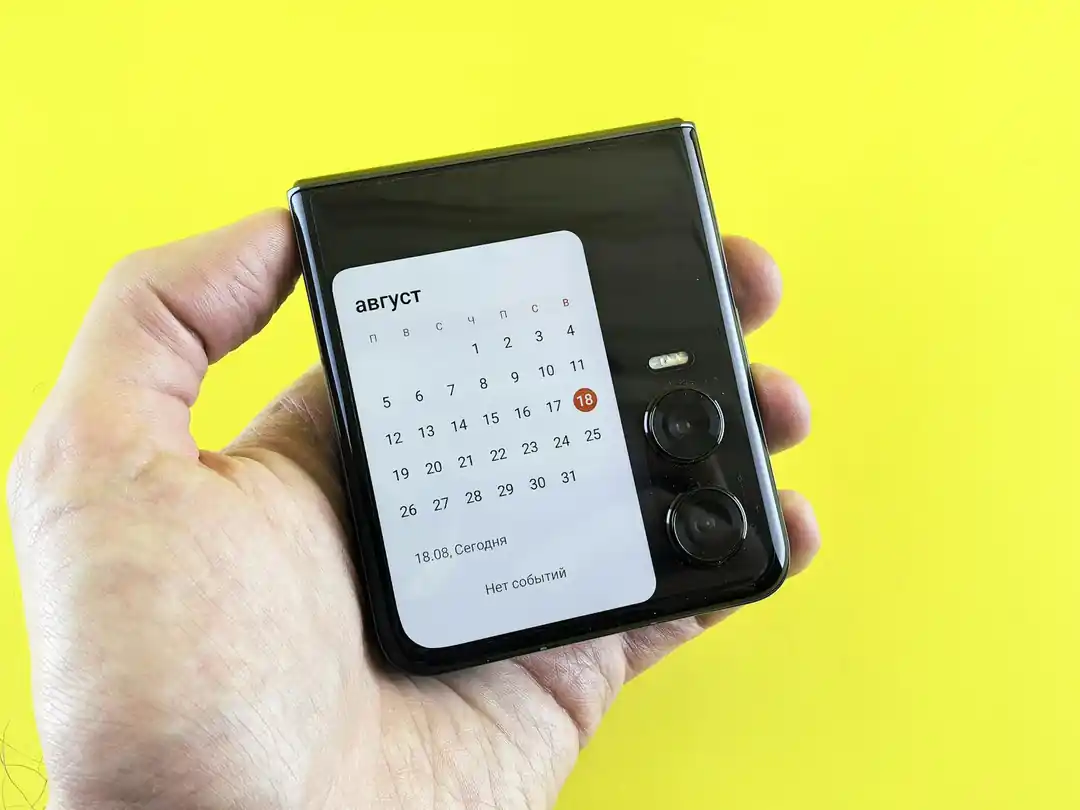
From Fragile to Formidable: The Surprising Evolution of Foldable Phone Durability
Remember when the idea of folding a smartphone screen in half felt like a disaster waiting to happen? Let's talk about how far they've come, because the story is pretty incredible.

Popular Posts

Rethinking Non-Profit Promotion: Creative Strategies That Actually Drive Event Impact
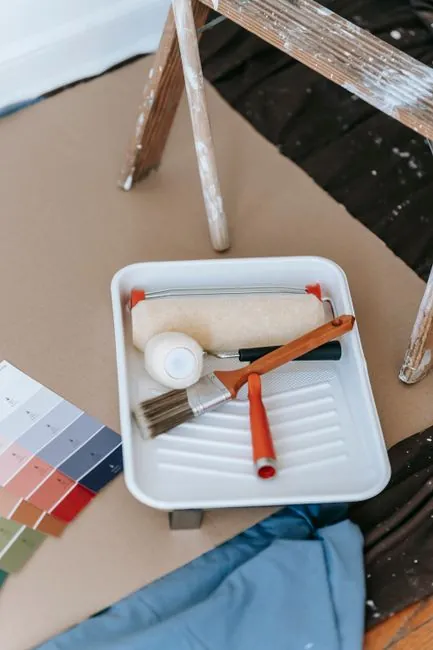
Beyond Stark White: The Best Interior Paint Colors to Light Up Your New Space

How to Actually Master a New Language on Your Own (No Magic Gene Required)